AI 에이전트 × 멀티 실행
Claude Code, Codex 등 여러 CLI 에이전트를 동시에 실행하기 위해 만든 멀티 세션 터미널입니다. Git, 대화 재개, 페어 프로그래밍이 내장되어 있습니다.
PATerminal의 전체 소스 코드는 GitHub에 공개되어 있습니다. 앱이 정확히 무엇을 하는지 확인하고, 직접 빌드하고, 텔레메트리를 보내지 않는다는 것을 검증할 수 있습니다. GitHub에서 소스 보기
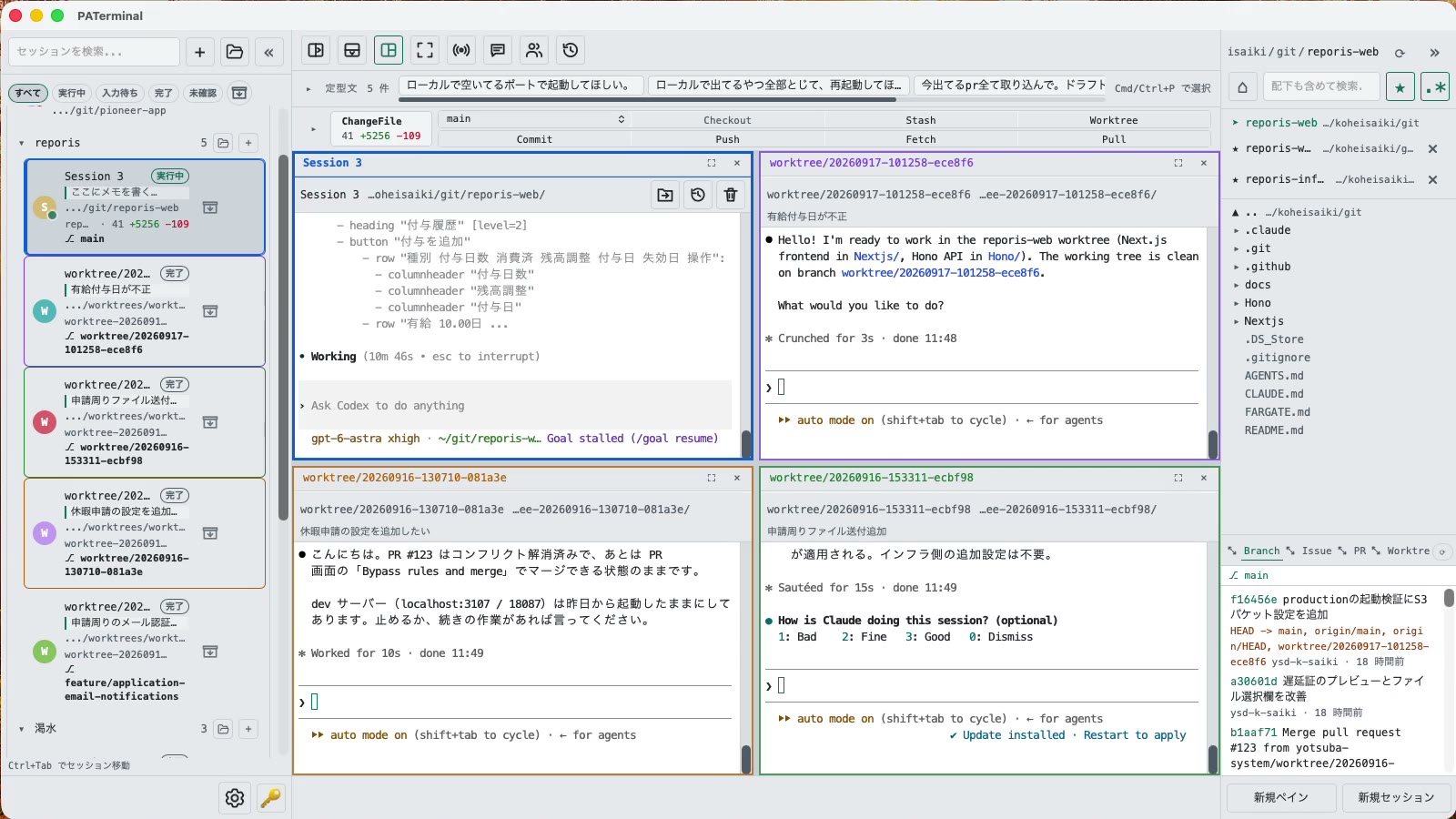
여러 에이전트를 실행하는 사람을 위해
여러 CLI 에이전트를 놓치지 않고 관리하는 데 필요한 모든 기능을 담았습니다.
병렬 세션
Each session gets its own independent pane tree. Group, pin, color-code, and annotate sessions with one-line notes. Restart the app and everything comes back — scrollback included.
재시작 후에도 이어지는 대화
PATerminal detects claude and codex and reopens them with --resume, so the conversation continues right where it left off. You can also hand off any past conversation to a fresh session from the history list.
페어 모드
Four modes: implement × review, cross-review, brainstorm, and co-implementation. Two agents pass prompts to each other automatically — you just watch the work happen.
내장 Git
Your changes are always visible in a strip above the terminal. Commit, push, pull, branch, and stash without leaving the app — plus PRs, issues, worktrees, and a built-in diff viewer.
모든 에이전트 상태 확인
Each session shows whether it's running, waiting for input, or done. Sessions you're not looking at send a desktop notification when they finish or need approval.
입력 및 문구 브로드캐스트
Type once, send to every session at the same time. Keep your go-to prompts in the snippet bar and fire them with one click.
내장 파일 탐색기
A file tree with recursive search, quick edits, trash-safe delete, and drag-and-drop moves — right next to your terminals.
17개 언어, 5개 테마, 원격 분석 없음
No analytics, no tracking. License validation sends nothing beyond your key and a device name.
다운로드
첫 실행부터 30일 무료 체험이 시작됩니다. 계정이 필요하지 않습니다.
Windows SmartScreen may show “Windows protected your PC” because the app is new. Click “More info”, then “Run anyway”. If you want to be sure, compare the SHA-256 below before opening the file.
Windows installation guide: verify your downloadOn first launch, macOS may ask you to confirm opening an app downloaded from the internet. Choose Open.
System requirements: macOS 11+ / Windows 10+
PATerminal의 전체 소스 코드는 GitHub에 공개되어 있습니다. 앱이 정확히 무엇을 하는지 확인하고, 직접 빌드하고, 텔레메트리를 보내지 않는다는 것을 검증할 수 있습니다. GitHub에서 소스 보기
Review the End User License Agreement (EULA) before downloading and using PATerminal.
PATerminal과 다른 터미널 비교
가장 많이 문의하는 터미널과 항목별로 비교했습니다. 각 열을 마지막으로 확인한 날짜를 함께 표시합니다.
PATerminal vs Windows Terminal
Windows Terminal은 훌륭한 무료 터미널입니다. PATerminal은 여기에 Claude Code나 Codex 세션을 여러 개 동시에 돌리는 데 필요한 것을 더합니다. 에이전트 상태, 대화 재개, 메모, Git 패널, 페어 모드. Windows 10 이상과 macOS 지원.
PATerminal vs Warp
Warp는 자체 AI 에이전트와 크레딧 과금을 내장합니다. PATerminal은 이미 결제 중인 CLI 에이전트(Claude Code, Codex 등)를 계정, 크레딧, 텔레메트리 없이 병렬로 실행합니다. Windows 10 이상과 macOS 지원.
PATerminal vs Orca
Orca는 에이전트마다 git worktree 하나를 두는 구조의 무료 오픈소스 에이전트 개발 환경입니다. PATerminal은 세션 정리, 대화 재개, 페어 모드를 갖춘 더 가벼운 터미널입니다. Windows나 macOS에서 어느 쪽이 내 워크플로에 맞을까요?